
Oracle9i (9.2.0.4.0) Installation on RedHat Advanced Server 2.1 Linux
This article is intended as a brief guide to installing Oracle9i (9.2.0.4.0) on RedHat Advanced Server 2.1 Linux. For additional information and platform variations read the Installation Guide for UNIX Systems.- Download Software
- Unpack Files
- Hosts File
- Set Kernel Parameters
- Setup
- Installation
- Post Installation
Download Software
Download Sun's Java Development Kit (JDK 1.3.1).Download the Oracle installation files from otn.oracle.com.
Unpack Files
First unzip the files:Next unpack the contents of the files:gunzip ship_9204_linux_disk1.cpio.gz gunzip ship_9204_linux_disk2.cpio.gz gunzip ship_9204_linux_disk3.cpio.gz
You should now have three directories (Disk1, Disk2 and Disk3) containing installation files.cpio -idmv < ship_9204_linux_disk1.cpio cpio -idmv < ship_9204_linux_disk2.cpio cpio -idmv < ship_9204_linux_disk3.cpio
Hosts File
The /etc/hosts file must contain a fully qualified name for the server:Set Kernel Parameters
Add the following lines to the /etc/sysctl.conf file:Run the following command to change the current kernel parameters:kernel.shmmax = 2147483648 kernel.shmmni = 128 kernel.shmall = 2097152 kernel.sem = 250 32000 100 128 fs.file-max = 65536 net.ipv4.ip_local_port_range = 1024 65000
Add the following lines to the /etc/security/limits.conf file:/sbin/sysctl -p
oracle soft nofile 65536
oracle hard nofile 65536
oracle soft nproc 16384
oracle hard nproc 16384
Setup
Install the Java development kit:Create the new groups and users:# Run the bin file. Agree to the terms and conditions. ./j2sdk-1_3_1_17-linux-i586.rpm.bin # Install the RPM file. rpm -ivh jdk-1.3.1_17.i586.rpm
Create the directories in which the Oracle software will be installed:groupadd oinstall groupadd dba groupadd oper groupadd apache useradd -g oinstall -G dba oracle passwd oracle useradd -g oinstall -G apache apache passwd apache
Login as the oracle user and add the following lines at the end of the .bash_profile file:mkdir -p /u01/app/oracle/product/9.2.0 chown -R oracle.oinstall /u01
Save the .bash_profile file and re-login as the oracle user. Make sure the .bash_profile ran correctly by issuing the following command:# Oracle 9i ORACLE_BASE=/u01/app/oracle; export ORACLE_BASE ORACLE_HOME=$ORACLE_BASE/product/9.2.0; export ORACLE_HOME ORACLE_TERM=xterm; export ORACLE_TERM PATH=$ORACLE_HOME/bin:$PATH:/usr/java/jdk1.3.1_17/bin; export PATH ORACLE_OWNER=oracle; export ORACLE_OWNER ORACLE_SID=TSH1; export ORACLE_SID LD_LIBRARY_PATH=$ORACLE_HOME/lib; export LD_LIBRARY_PATH CLASSPATH=$ORACLE_HOME/JRE:$ORACLE_HOME/jlib:$ORACLE_HOME/rdbms/jlib; export CLASSPATH ORACLE_OEM_JAVARUNTIME=/usr/java/jdk1.3.1_17; export ORACLE_OEM_JAVARUNTIME TMP=/tmp; export TMP TMPDIR=$TMP; export TMPDIR
set | more
Installation
Log into the oracle user. If you are using X emulation then set the DISPLAY environmental variable:Start the Oracle Universal Installer (OUI) by issuing the following command in the Disk1 directory:DISPLAY=:0.0; export DISPLAY
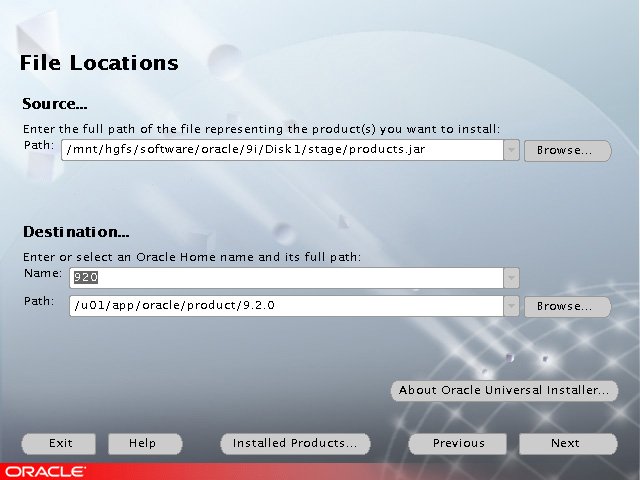
During the installation enter the appropriate ORACLE_HOME and name then continue as normal. For a more detailed look at the installation process, click on the links below to see screen shots of each stage../runInstaller
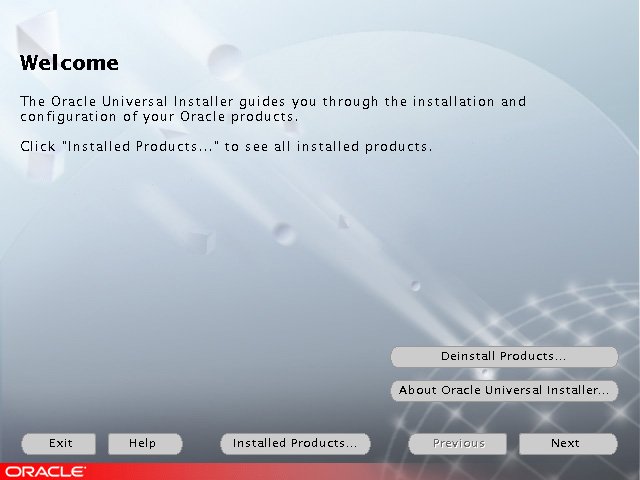
- Welcome
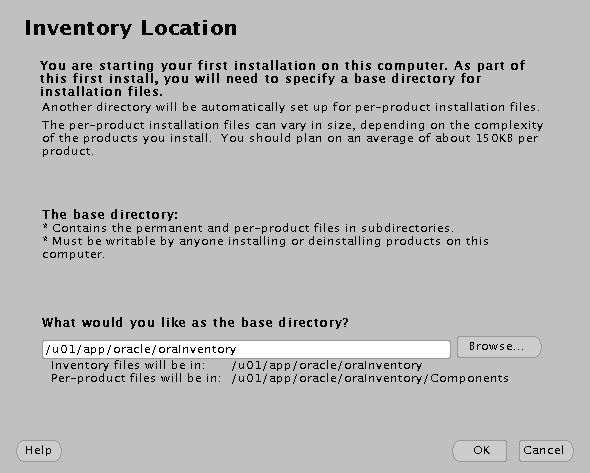
- Inventory Location
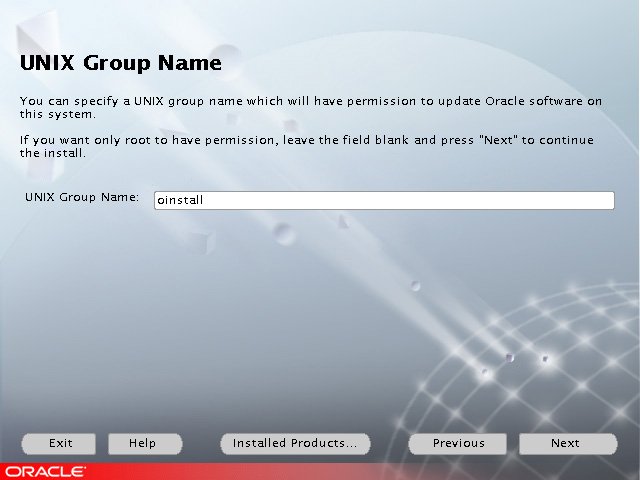
- UNIX Group Name
- UNIX Group Name Privileges Dialog
- File Locations
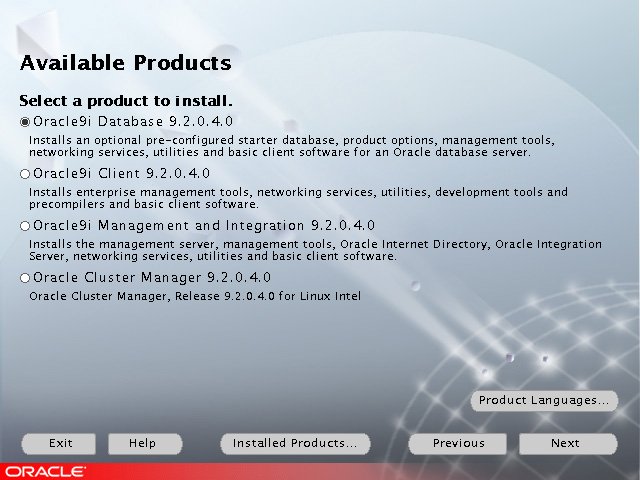
- Available Products
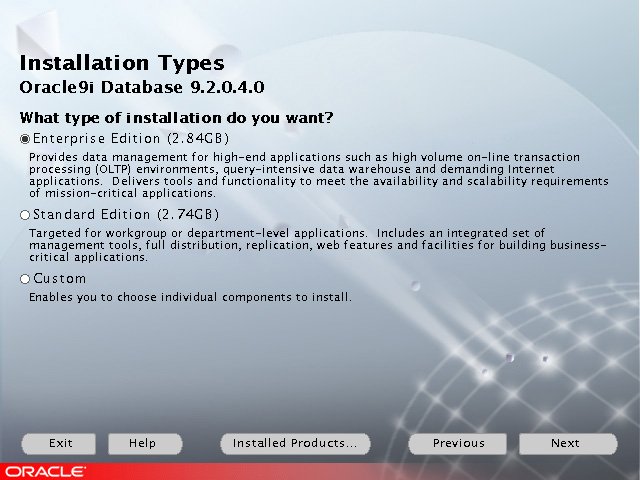
- Installation Types
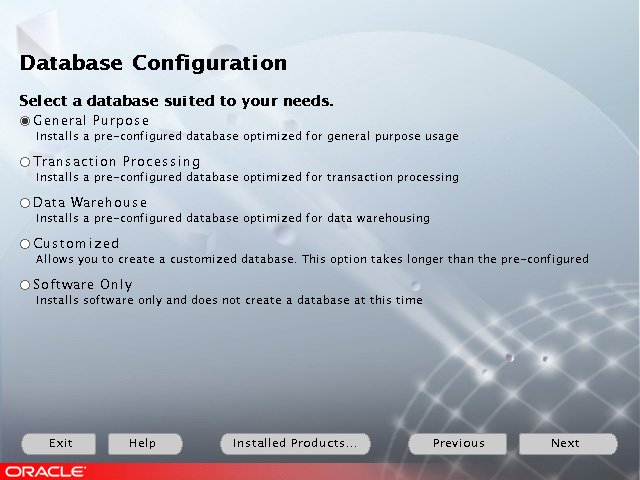
- Database Configuration
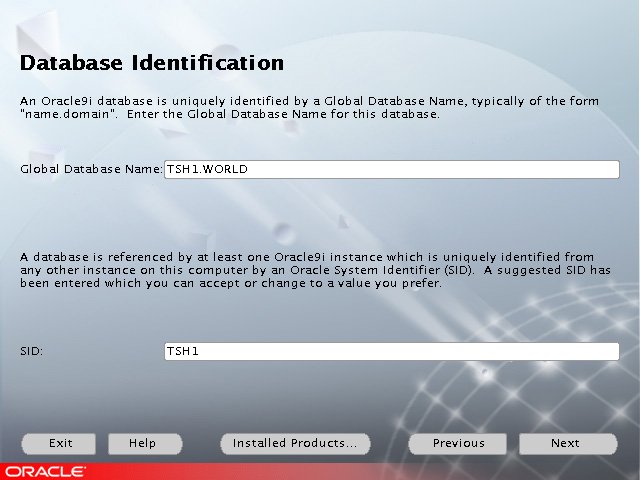
- Database Identification
- Database File Location
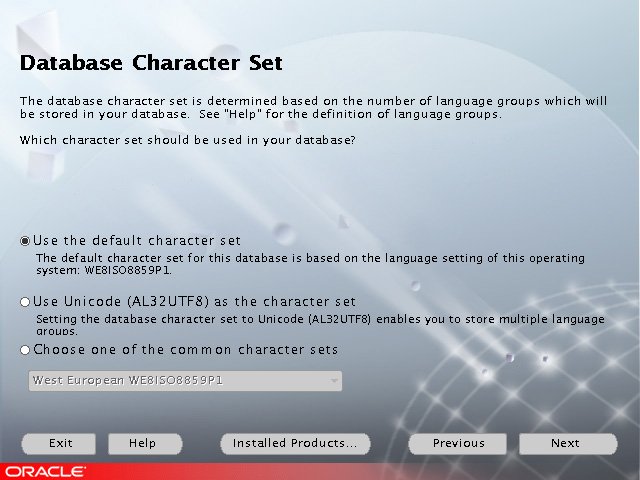
- Database Character Set
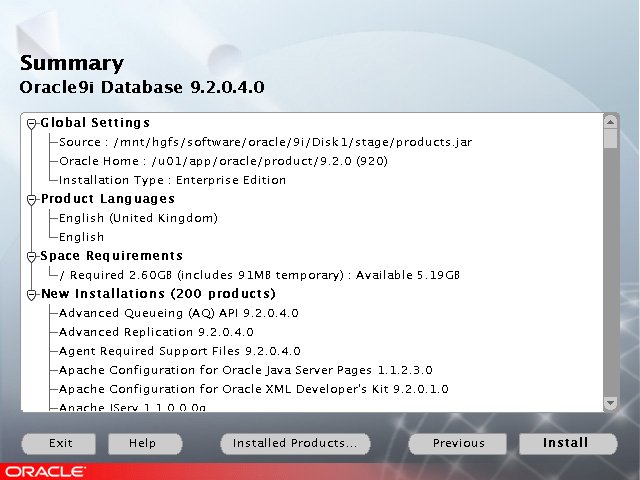
- Summary
- Install
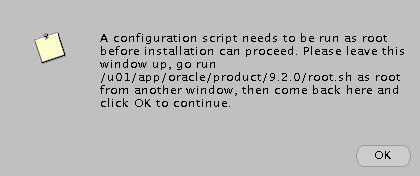
- Setup Privileges
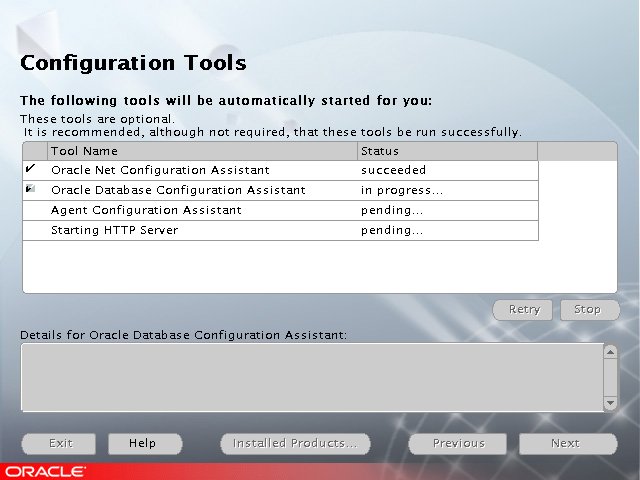
- Configuration Tools
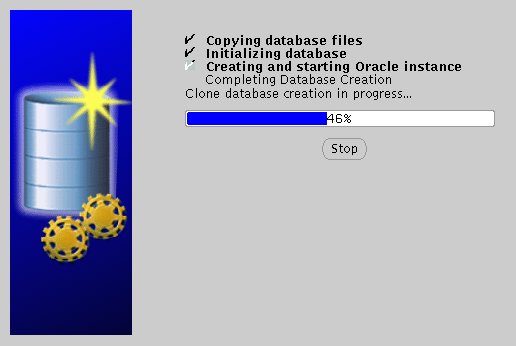
- Database Configuration Assistant
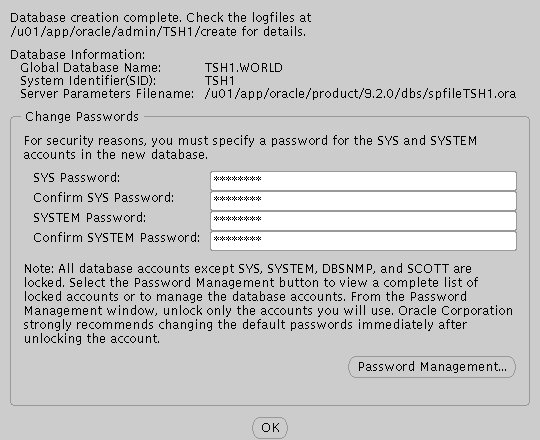
- Database Configuration Assistant Passwords
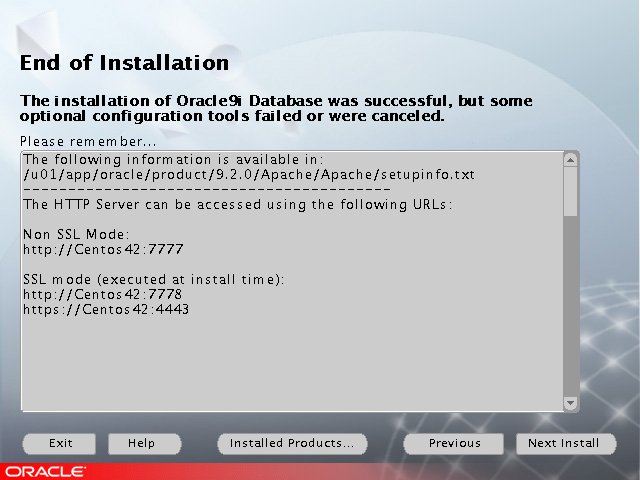
- End Of Installation
Post Installation
Once the instance is created edit the /etc/oratab file setting the restart flag for each instance to 'Y':For more information see:TSH1:/u01/app/oracle/product/9.2.0:Y




No comments:
Post a Comment